Controls
Complete controls guide — all keybinds for PC, mobile, Xbox, PlayStation, and Meta Quest.
Quick Tips
Why This Matters
Knowing your controls is the first step to survival. Whether you're on PC, mobile, console, or VR, understanding the keybinds lets you react faster during emergencies — sprinting to shelter before a storm or quickly refueling your fire can save your life.
Key Data
| Action | PC | Mobile | Xbox | PlayStation |
|---|---|---|---|---|
| Move | WASD | Joystick | Left Stick | Left Stick |
| Interact | E / Click | Tap | A | X |
| Sprint | Shift | Sprint Btn | X | Circle |
| Build | B / Menu | Build Btn | Y | Triangle |
| Fish | F / Click | Tap Spot | A (at spot) | X (at spot) |
Mechanics Deep Dive
PC Controls: WASD for movement, mouse for camera. E or left-click to interact with objects. B opens the build menu. F or click at a fishing spot to fish. Tab or I opens inventory. Hold Shift to sprint — critical for emergency dashes to shelter during storms. PC offers the most precise and responsive controls.
Mobile Controls: Virtual joystick in the lower-left for movement. Tap directly on objects to interact — contextual buttons appear near buildable items and fishing spots. A sprint button appears on-screen when moving. Mobile controls work well but lack the precision of keyboard and mouse for quick reactions during emergencies.
Console Controls (Xbox & PlayStation): Left stick for movement, right stick for camera. A/X for interact, B/Circle for cancel, X/Circle for sprint, Y/Triangle for build. Bumpers handle quick actions. Console controls follow standard Roblox conventions, making them intuitive for experienced Roblox console players.
Accessibility Settings: The game uses standard Roblox accessibility options including adjustable camera sensitivity, key remapping through Roblox settings, and text chat for communication. Colorblind modes are available through Roblox system settings. No in-game specific accessibility options exist in Alpha, but standard platform-level accommodations apply.
Frequently Asked Questions
How do I play on mobile?▾
What are the Xbox keybinds?▾
How do I sprint?▾
Does the game support VR controls?▾
Key Decisions
PC or console?
PC — precise controls, faster reactions
Console — comfortable, casual play
PC is recommended for survival gameplay where sprint timing and rapid interactions matter. Console is fine for casual sessions, but emergency situations are harder to navigate with controller input.
Custom or default keybinds?
Default — no setup time, standard layout
Custom — optimized for personal preference
Start with defaults and remap only if specific keys feel awkward. The default Roblox layout is well-designed for survival. Custom binds help if you have muscle memory from other games.
Sprint often or conserve stamina?
Sprint often — cover ground fast, less exposure
Conserve stamina — walk to avoid running out mid-emergency
Sprint only for emergencies or short bursts between shelter and resources. Walking conserves your sprint for when you truly need it — like dashing to shelter when a storm hits unexpectedly.
⭐ Controls & Platform
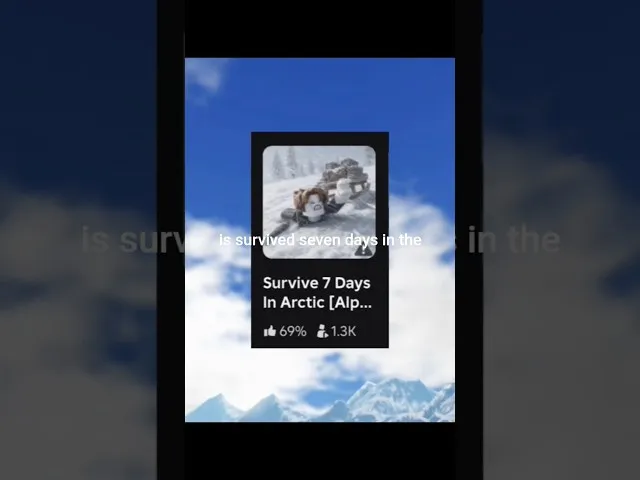
Survive 7 Days In Arctic Controls and Keybinds — All Platforms
Learn all controls for Survive 7 Days In Arctic on Roblox: movement, resource interaction, building, fishing, and fire management across PC, mobile, Xbox, PlayStation, and Meta Quest.

Survive 7 Days In Arctic Mobile and Tablet Tips — Touch Controls Survival Guide
Playing Survive 7 Days In Arctic on mobile or tablet? Learn touch control tips, mobile-specific strategies, and how to optimize your survival experience on iOS and Android.
Survive 7 Days In Arctic Beginner Controls — Essential Keybinds and Input Guide for New Players
Learn the essential controls for Survive 7 Days In Arctic on every platform. Complete keybind reference for PC, mobile, Xbox, PlayStation, and Meta Quest beginners.
Controls
(2)
Survive 7 Days In Arctic Cross-Platform Play — How Crossplay Works
Learn how cross-platform play works in Survive 7 Days In Arctic. PC, mobile, Xbox, PlayStation, and Meta Quest players can all survive together in the same server.
Survive 7 Days In Arctic Sensitivity and Accessibility Settings — Optimize Your Controls for Survival
Optimize sensitivity and accessibility settings in Survive 7 Days In Arctic for better survival performance. Camera speed, control mapping, and platform-specific tips.